Open OnDemand
Open OnDemand is your web portal to the on-prem HPC cluster. It provides numerous tools and resources to facilitate your work with a friendly graphical interface.
Notice
Open OnDemand is under active development. Please submit a ticket to ARC for any feature requests or issues you have.
Logging in
Open OnDemand: https://cmrihpcportal.cmh.internal/
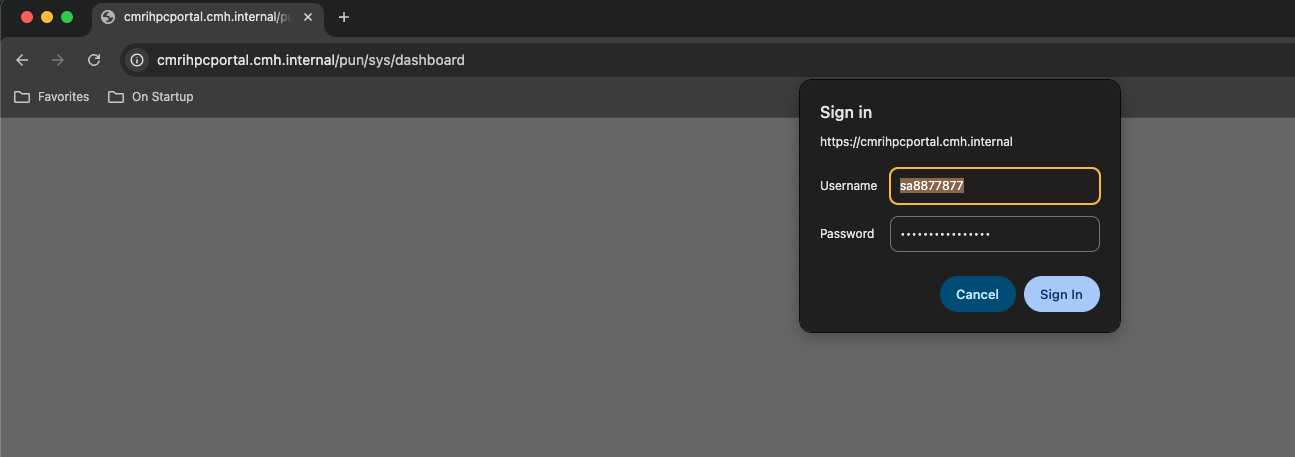
You will be prompted to put in your username and password. It is the same username and password that you use to access other HPC resources.
Applications Available in Open OnDemand (OOD)
Our current implementation currently only has the basic applications available from a default deployment of OOD. Below is a quick summary of those capabilities that you may see at the top of the site when you login:
- Files
- Allow to you manage, upload, download and delete files from your home directory.
- Jobs
- Review active jobs and get assistance composing your own jobs with the "Job Composer".
- Clusters
- See cluster health and provide shell access to the login node (from your browser).
- Interactive Apps
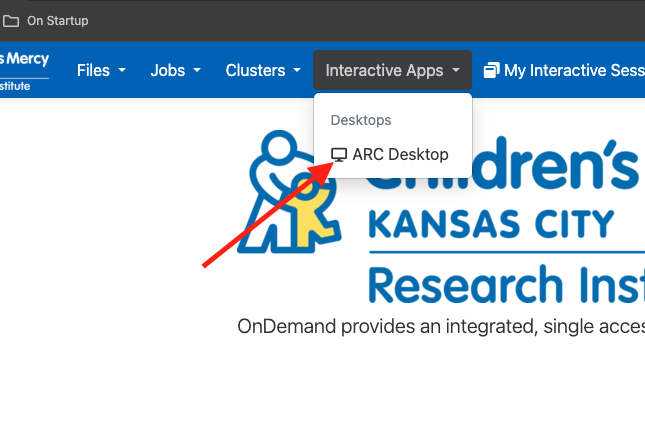
- Launch applications that ARC builds and mantains on the cluster. At the time of writing, we only have the ARC Desktop available.
- Sessions Button
- Allow you to switch between different interactive apps.
ARC Desktop Submission Form
The desktop to access GUI resources on the cluster at this point in time can be accessed from Interactive Apps > ARC Desktop
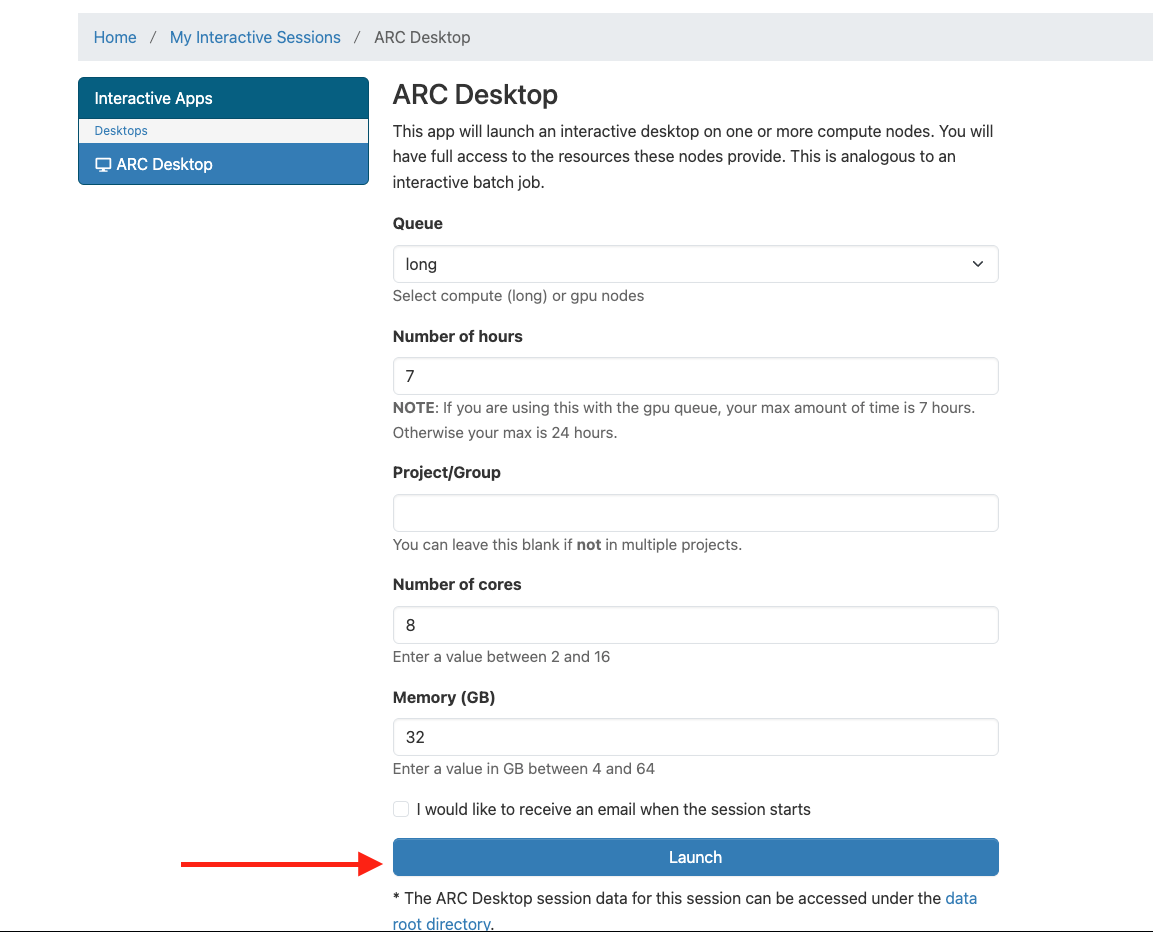
You will be taken to a submission form. The basic gist of each option is as follows:
- Queue
- There are two options from a dropdown. One is long and the other is gpu. The long queue will take you to an available compute node. The gpu queue will take you to an available GPU node.
- Number of hours
- This sets the number of hours that the ARC Desktop will run for on the resource. Your maximum is 24 hours, at which point you would have to submit this job again.
- Project/Group
- In the future, if you work for multiple labs this will be a way to track what resources you are using for whom. At the moment, this is not implemented but available for ARC testing.
- Number of cores
- This specifies how many cores you want for your desktop session.
- Memory (GB)
- This sets the amount of memory your desktop will have on the node you are provisioned to.
NOTE: Setting cores and memory in your desktop session does not affect any jobs you may submit to SLURM with other values set. They only pertain to the GUI.
Once you have set those values to your liking, click Launch.
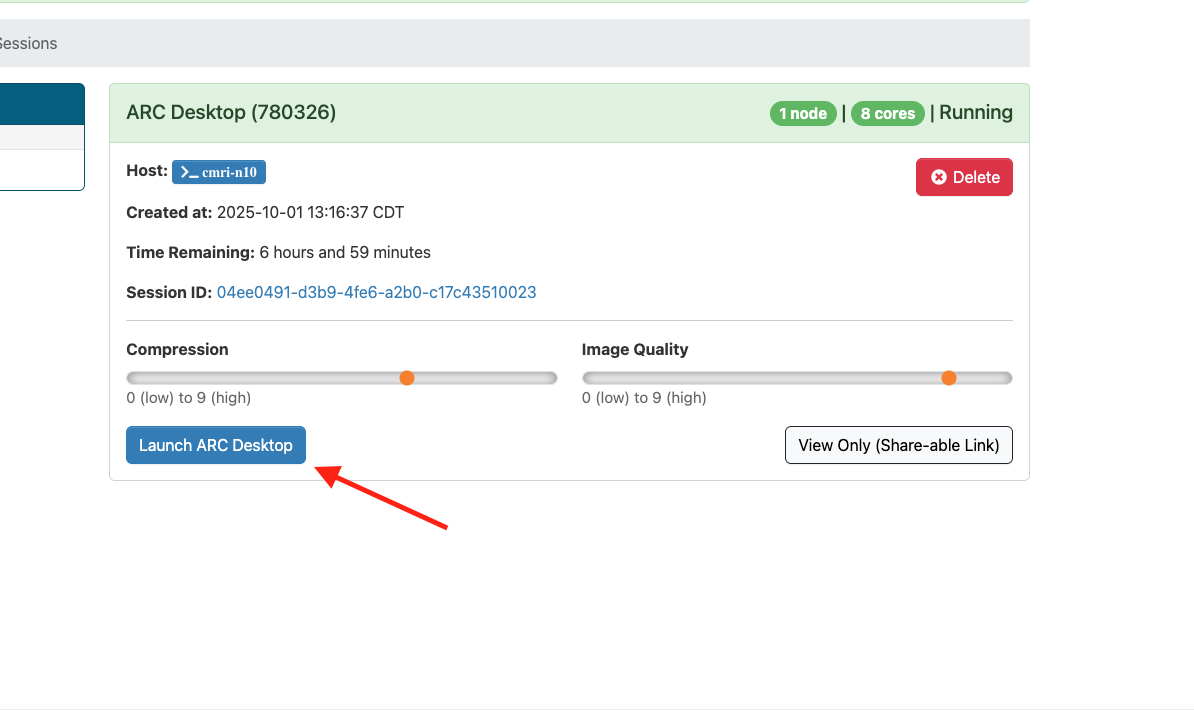
You will be redirected to a page with your running app ready to be queued. Once it's ready (likely after a few seconds) you will see a Launch ARC Desktop button. You can also adjust your image quality values before launching the desktop to fit your needs.
ARC Desktop Environment
First run permissions
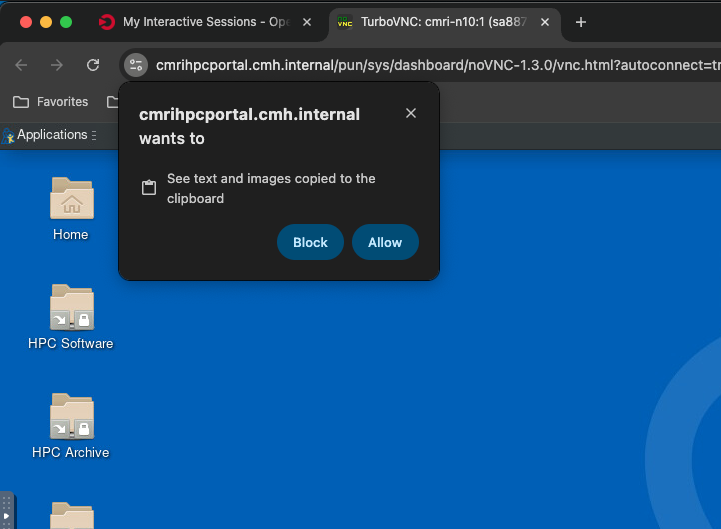
On first login, you be prompted to request permissions for OOD. Click Allow.
Clipboard
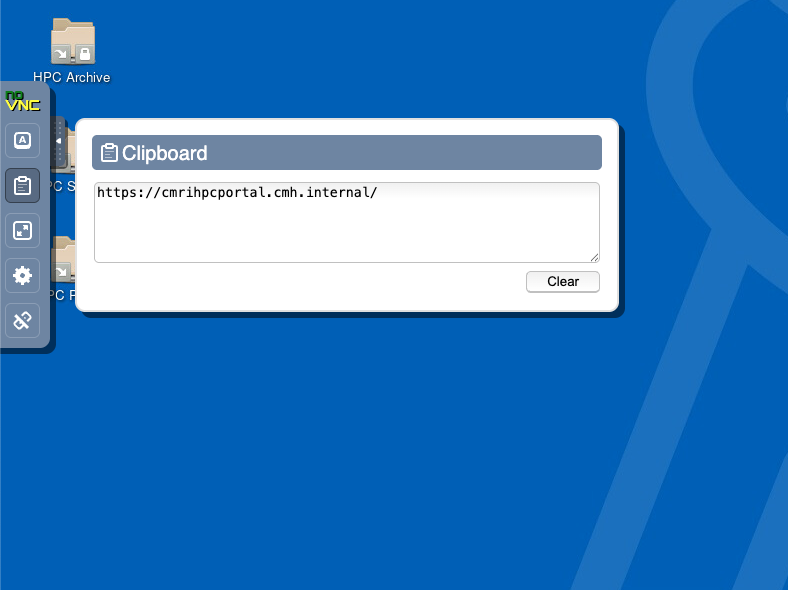
On the left side of your browser tab, there is a tiny button that opens a drawer for settings used by noVNC (how you are viewing the desktop) as well as a button for a clipboard.
This is how you can copy and paste text from your local machine to the ARC Desktop environment. You can otherwise interact with HPC resources as you normally do, if you wish to upload text via other methods instead.
Desktop
The default desktop environment for the ARC Desktop is a curated version of XFCE.
There are shortcuts available on the desktop to allow for the perusal of these directories:
- Archive
- Scratch
- Software
- Project
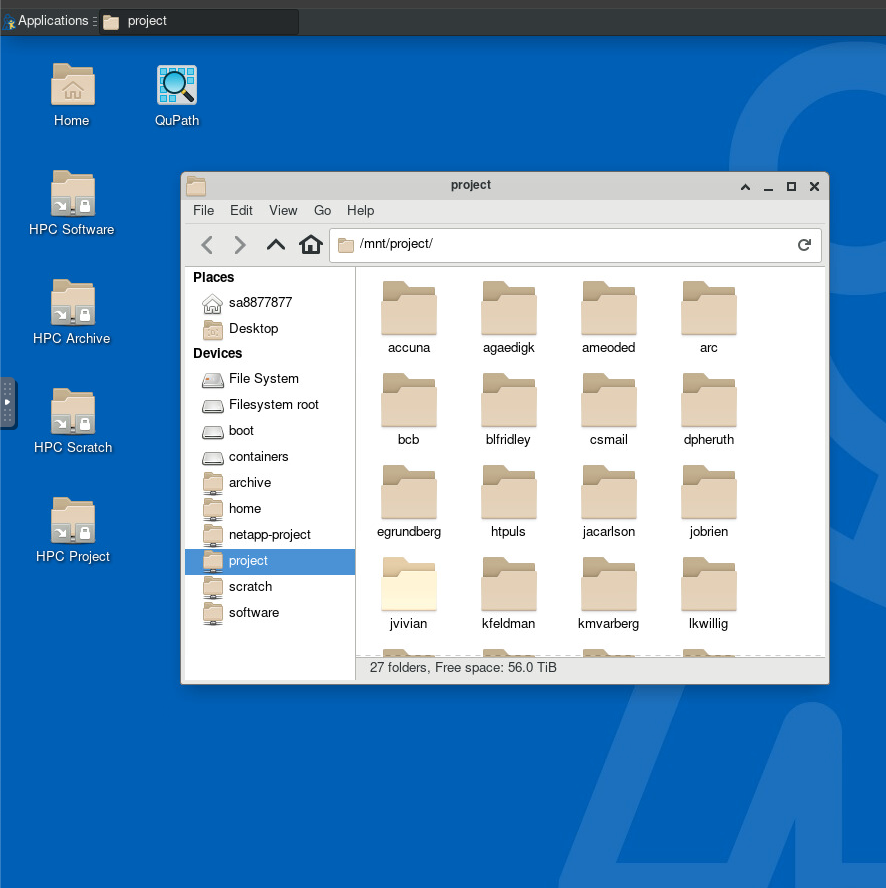
These will open in Thunar which is the file explorer built into XFCE.
Application Menu
In the top left of the desktop, there is a dropdown with the CMH logo called Applications.
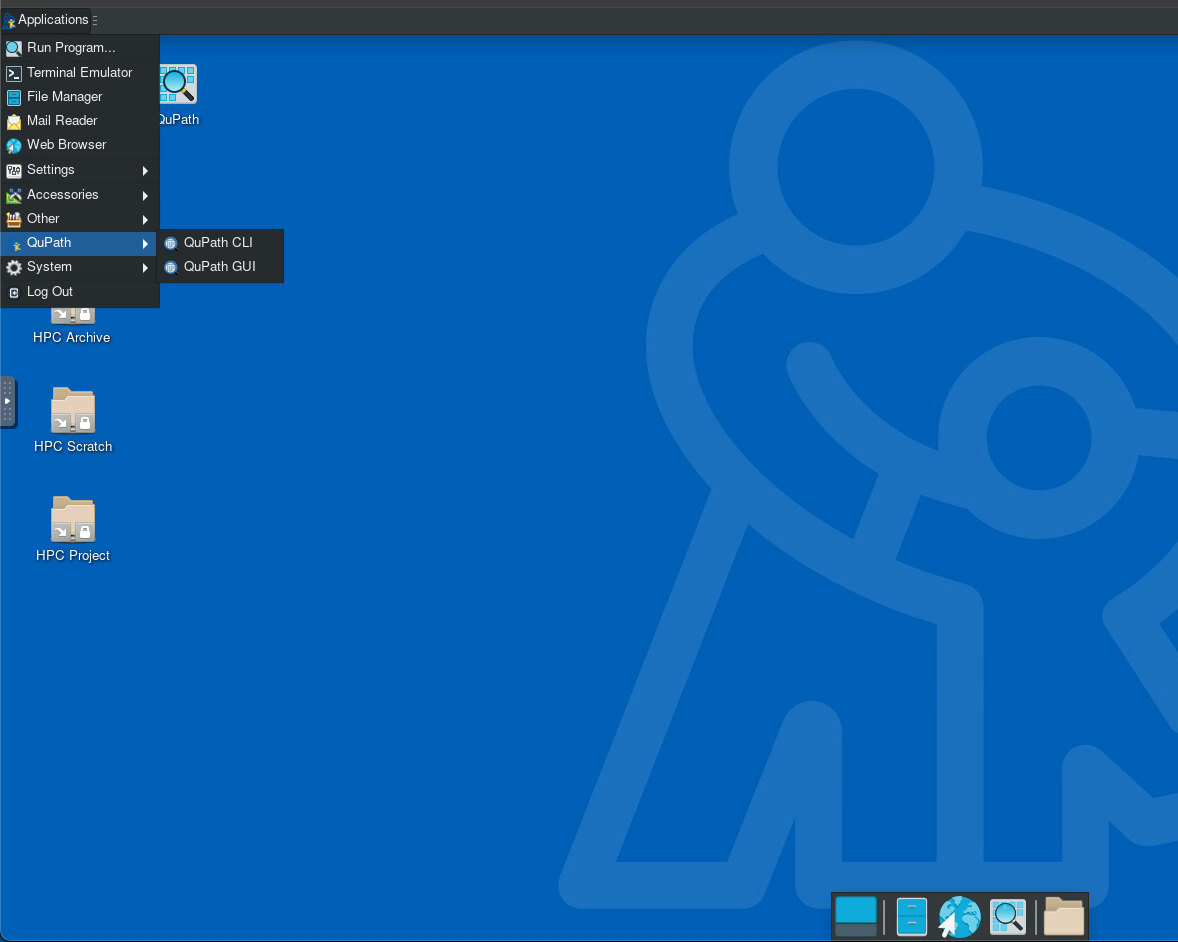
This show you a menu on the available GUI software available on the ARC Desktop. Some options are not implemented.
Once you have found an application that you want to run, simply click on it to run.
NOTE: The terminal emulator on the ARC Desktop will also allow you to load modules available on the cluster, and run any GUI applications from the module if they are available
Taskbar
The taskbar for open applications are at the top of the desktop, on the same panel as the Applications menu. You can easily switch between things that are opened there.
Dock
The dock at the bottom of your desktop is another way to launch applications in the environment. This may change or disappear in future releases of the desktop.
Logging out
To close out of your session, simply close the browser tab for the session. You can also do the same with Open OnDemand itself.